



If you’ve edited a page on your website in the last few weeks, there’s a decent chance you clicked a section to change a heading and got… the section. Looking exactly like it does on the live site. No fields, no text boxes, no obvious way in. Cue a small, quiet panic, and possibly an email to us.
Deep breath. Nothing is broken and nothing has been lost. WordPress changed how page sections are edited, and the fields you’re used to have moved into a panel on the right-hand side of the screen. Same job, slightly different route.
We spotted it as the updates rolled out, fixed the knock-on problems on the sites we look after, and wrote this so nobody else has to work it out the hard way. If you’re one of our clients, we’ve got it covered and it won’t cost you anything. If you’re not, keep reading, because your developer might have some homework.
What actually changed?
Most of the websites we build are made of blocks. A block is a section of a page: a hero, a text-and-image row, a gallery, a call to action. Behind each one is a set of fields (headings, text, images, buttons) that you fill in, and the block takes care of making it look right.
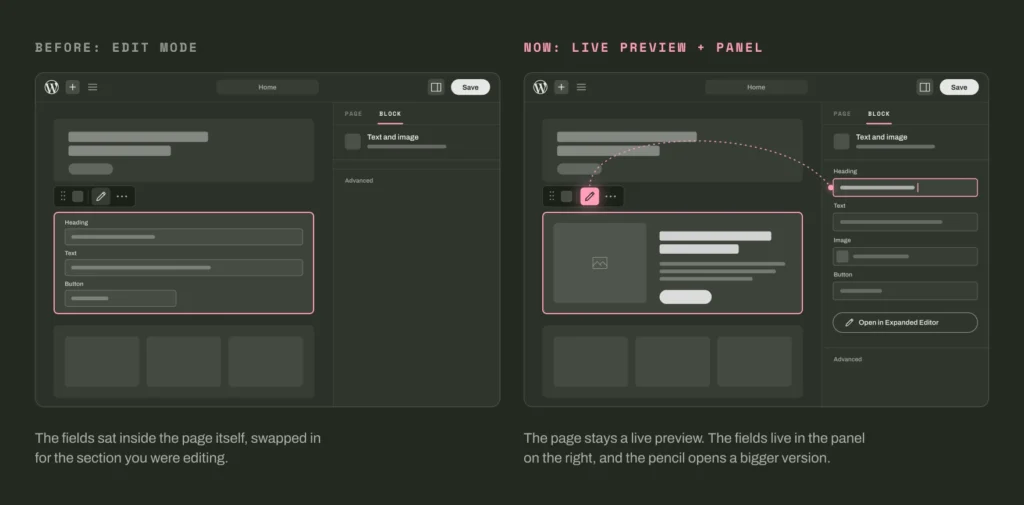
Until the end of August, clicking a block on most of our sites swapped it for its form, right there in the middle of the page. You typed into the fields, clicked away, and the section reappeared with your changes. Developers call this edit mode.
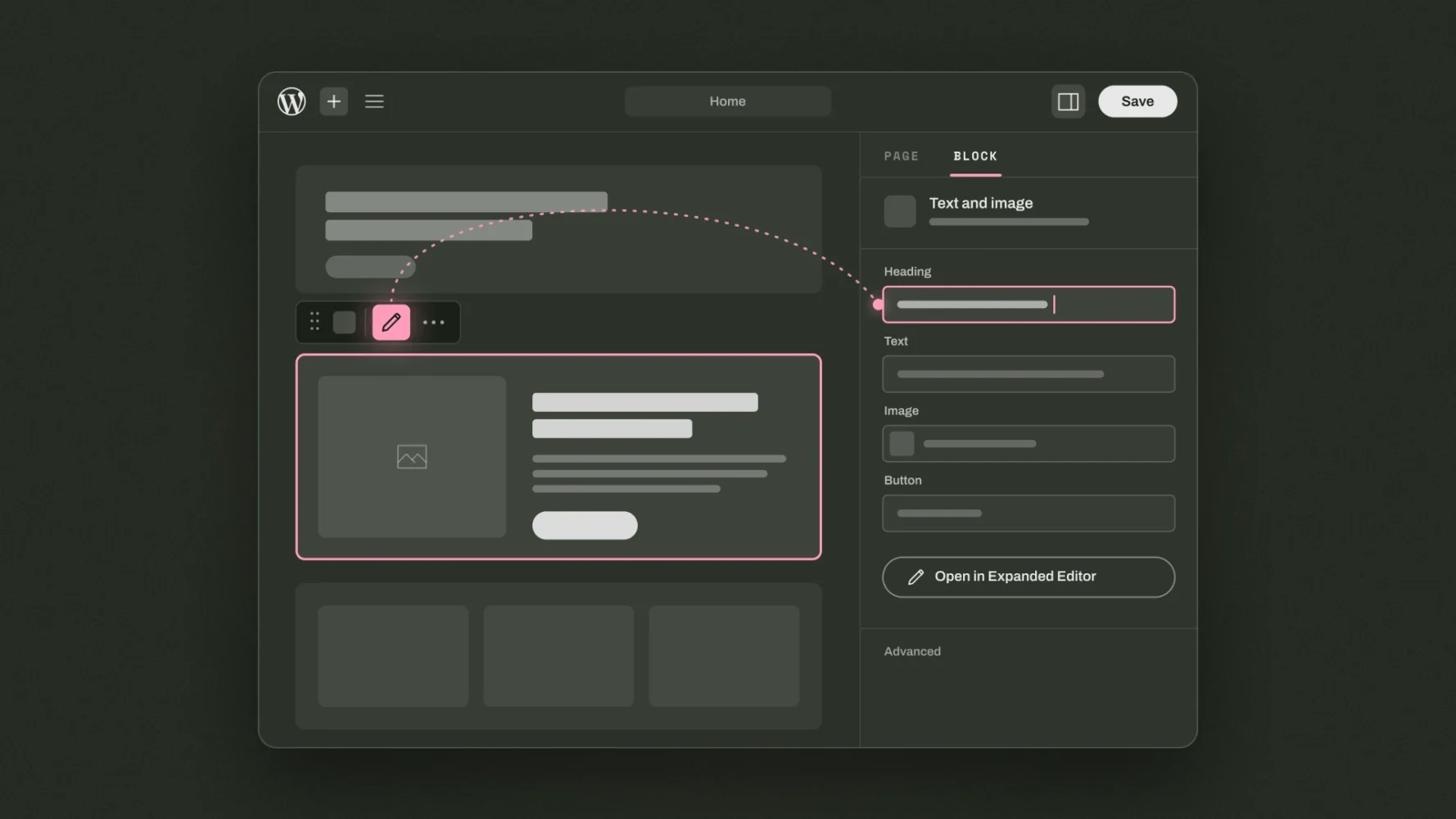
Edit mode is gone. The page now stays as a live preview the whole time, and the fields for whichever block you’ve selected live in the settings panel on the right. Click the pencil icon in the little toolbar above the block and you get the same fields in a bigger panel, which ACF calls the Expanded Editor.
Your content is exactly where you left it. It’s stored the same way and your live site looks the same as it did last month. Only the route to the fields has changed.
Why did WordPress change it?
There are two bits of software involved, so bear with me for a paragraph or two of nerd.
WordPress is the system your site runs on. Version 7.1 came out on 19 August 2026, and one of its changes is that the page editor now always runs inside an iframe. Think of an iframe as a sealed window that shows your page with the site’s real styles, so what you see while editing matches what visitors see. WordPress has been heading this way for a few years. 7.1 is where it stopped being optional.
ACF (Advanced Custom Fields) is the plugin behind the blocks on most custom-built WordPress sites, ours included. The old edit mode, with forms appearing inside the page, doesn’t work inside that sealed window. ACF had already built a new version of its blocks for exactly this (ACF Blocks version 3, first released in October 2025), and eight days after WordPress 7.1 landed, ACF PRO 6.8.9 made it the default on any site running 7.1 or later.
ACF’s own release notes are refreshingly blunt about whose idea it was: “This is not a decision ACF made. It is a WordPress core change.” Fair enough.
So nobody changed it to annoy you personally. It’s the trade-off for an editor that previews your pages more accurately, and honestly, once your hands have learned the new route, it’s a nicer way to work. You’re looking at the real page while you edit it.
How to edit a section now
Four steps. It’ll be muscle memory by Friday.
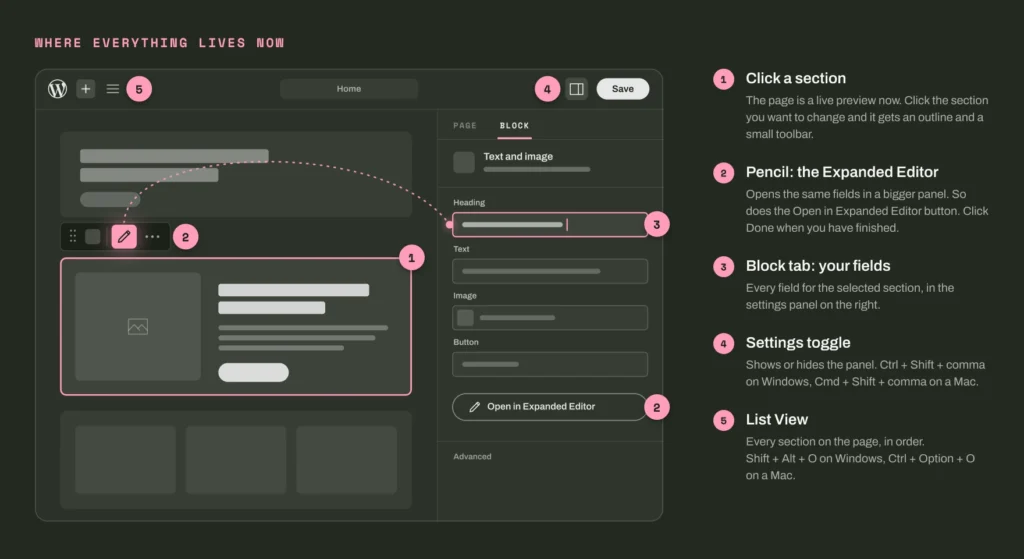
1. Click the section you want to change
It gets an outline and a small toolbar appears above it. On a long page, the List View (the three-line icon at the top left) lists every section in order so you can jump straight to the one you want. Keyboard fans: Shift + Alt + O on Windows, Ctrl + Option + O on a Mac.
2. Look to the right
The fields for that section are in the settings panel on the right, under the Block tab. If the panel isn’t showing, click the settings icon next to the Save button at the top right, or press Ctrl + Shift + comma (Cmd + Shift + comma on a Mac).
3. Want more room? Click the pencil
The pencil in the block toolbar, or the Open in Expanded Editor button in the panel, opens the same fields in a bigger panel. It’s the comfiest option for long text, galleries and anything with a lot of fields. Make your changes, then click Done. Give it a second: Done waits until your changes are safely stored before it lets you close the panel.
4. Save the page as normal
Save (or Update) at the top right, same as always. The preview updates as you go, so what you see on the page is what your visitors will get.
What we’ve done about it
We host and look after a lot of WordPress sites, so we saw this early. Here’s what we’ve been handling for our clients:
Fixed the editor styling. On some sites the update knocked out the styling of the preview inside the editor, so sections looked plain and unstyled while you worked. That’s fixed, so the editor matches your live site again.
Updated ACF PRO. On some sites the Open in Expanded Editor button went missing altogether. That was an ACF bug affecting blocks set up the way ours are, fixed in ACF PRO 6.8.0. We’re rolling the latest release (6.8.10 at the time of writing) out across the sites we manage.
Removed the redundant accordions. Most of our older themes wrap each block’s fields in a collapsible accordion. That made sense when the form sat in the middle of the page. In a side panel that only ever shows one block anyway, it’s an extra click and a bit confusing, so we wrote a script that strips them out of every block in one go. No content is touched. An accordion is a folder for the fields, not a field itself.
Not one of our clients? Here’s your checklist
If you’ve landed here from Google because your block fields have vanished, welcome. Here’s what to check, or what to ask whoever looks after your site.
Your fields are crammed into a narrow sidebar. Your blocks are probably still on ACF Blocks version 1 or 2. WordPress 7.1 keeps the iframe on regardless, so those blocks can only be edited in the sidebar, and people on ACF’s support forum are reporting blocks that are unreadable in a 280 pixel panel. The proper fix is moving the blocks to version 3.
The pencil or the Open in Expanded Editor button is missing. Update ACF PRO. Version 6.8.0 fixed the button for blocks registered in PHP, and later releases add more fixes on top.
The preview inside the editor looks unstyled. Your theme’s styles need loading inside the editor iframe, not just on the live site. That’s a developer job, and usually a quick one.
Every block has an accordion or tab wrapped around its fields. Harmless, but redundant now. Worth tidying while someone’s in there.
You need breathing room before fixing it properly. ACF has published a compatibility plugin that keeps older blocks editable the old way for now, but describes it as “a temporary compatibility bridge” that is “not intended to be used permanently”. Use it to buy a week, not a year.
And whatever you do, test on a staging copy first. Rolling WordPress back on a live site because the editor looks different is a bigger risk than the change itself. We wrote about why in How to update WordPress (and why it matters).
For developers, the short version
ACF PRO 6.8.9 registers any block without a declared version as v3 on WordPress 7.1 and later. Blocks that declare version 1 or 2 stay put, and the acf/blocks/default_block_version filter changes the default. To pin a block to v3 explicitly, set blockVersion to 3 in the acf section of block.json, or acf_block_version to 3 for blocks registered in PHP. If you want a form-first feel, renderPreview (6.8.9 and later) swaps the live preview for a placeholder with an Edit Block button, and hideFieldsInSidebar (6.6.2 and later) keeps all editing in the Expanded Editor. The pages worth your time are ACF’s Blocks v3 documentation and the WordPress iframed editor dev note.
The short version
Nothing is broken and your content is safe. The fields have moved from the middle of the page to the panel on the right, and the pencil opens them in a bigger panel. If you’re one of our clients, we’re on it. If you’re not, and your editor has been acting strange since August, get in touch and we’ll take a look.
So, there you have it. A WordPress update where the main thing you need to do is look slightly to the right.
FAQs
Why can’t I see the fields when I click a block in WordPress?
Since WordPress 7.1, the editor always shows blocks as a live preview. On sites built with ACF blocks, the fields now appear in the settings panel on the right under the Block tab, or in a larger Expanded Editor panel when you click the pencil icon in the block toolbar.
Has the update deleted or changed my content?
No. The change affects how fields are edited, not how your content is stored or displayed. Your live site looks exactly the same.
Can I switch back to the old edit mode?
Not for long. WordPress 7.1 always runs the editor in an iframe, where the old in-page forms don’t work. ACF offers a compatibility plugin for older blocks, but only as a temporary bridge. The better fix is moving your blocks to version 3.
Do I need to do anything?
If we look after your site, no. If someone else does, ask them whether your ACF blocks are on version 3 and ACF PRO is up to date. If you’re not sure who looks after your site, that’s worth a conversation too.